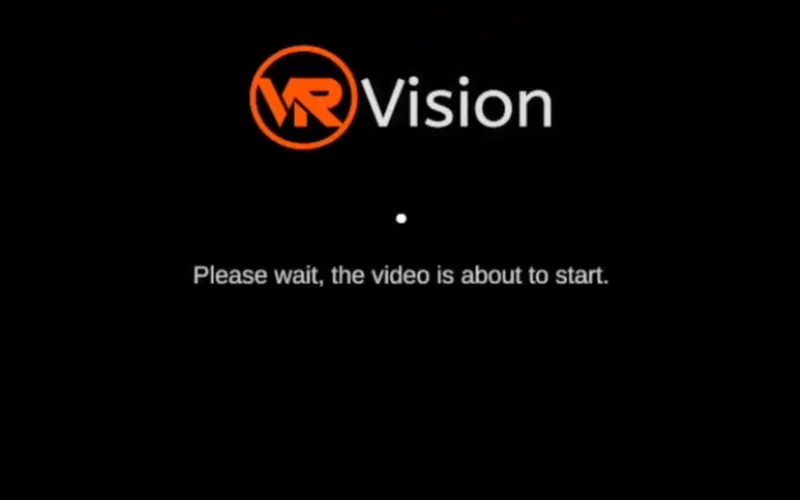
Press the button. Plays on its own. Resets on its own.
Turns a Meta Quest into a 180º and 360º video kiosk that anyone on your team can run: no training, no manual, no need to call whoever set up the event. Swap the headset, press the button and the rest happens on its own, visitor after visitor, all day long.
For Meta Quest 3S, Meta Quest 3, Meta Quest Pro and Meta Quest 2 · Portuguese and English interface
Real screen recording of the app
How it works
A loop that waits for no one
Once set up, the Kiosk Player repeats these four moments on its own. The only thing your team does is put the headset on the next visitor and press the button.
WaitingStays on the waiting screen with your event brand, ready for the next visitor.
StartYour team presses the headset Volume+ or the controller button. No password, no hidden menu.
SessionPlays the one video you picked: no playlist, no risk of the wrong content.
ResetGoes back to the waiting screen on its own when the video ends. Nobody has to touch anything.
And it starts over on its own, ready for the next visitor, all day long.
Not a mockup
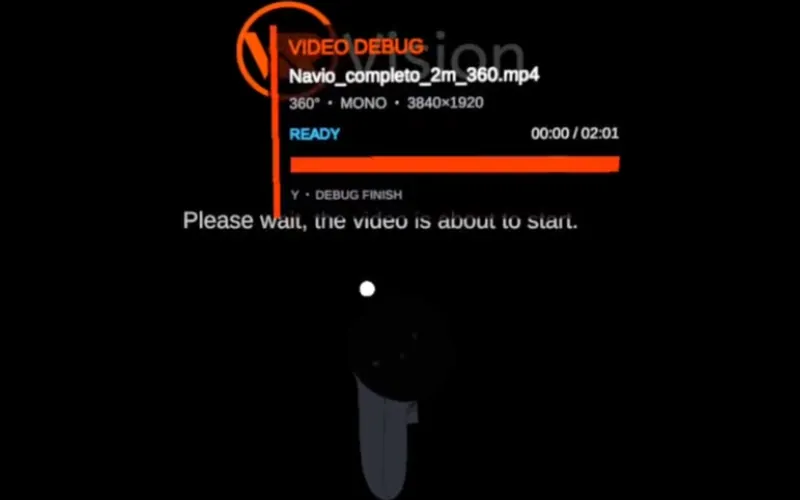
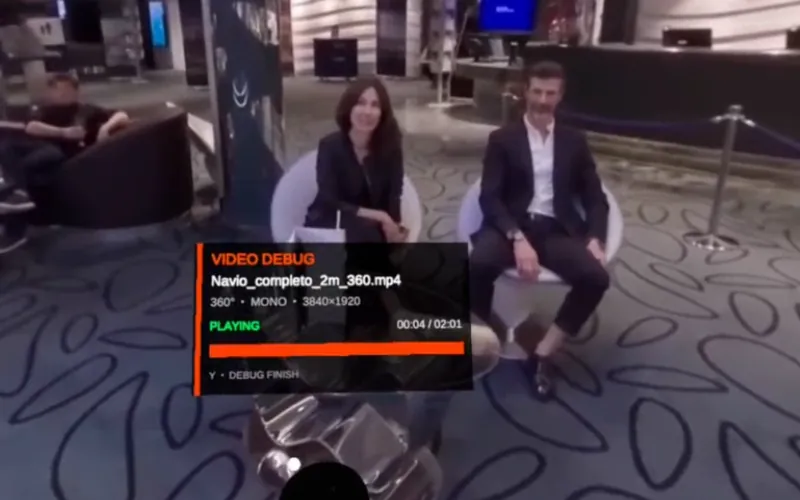
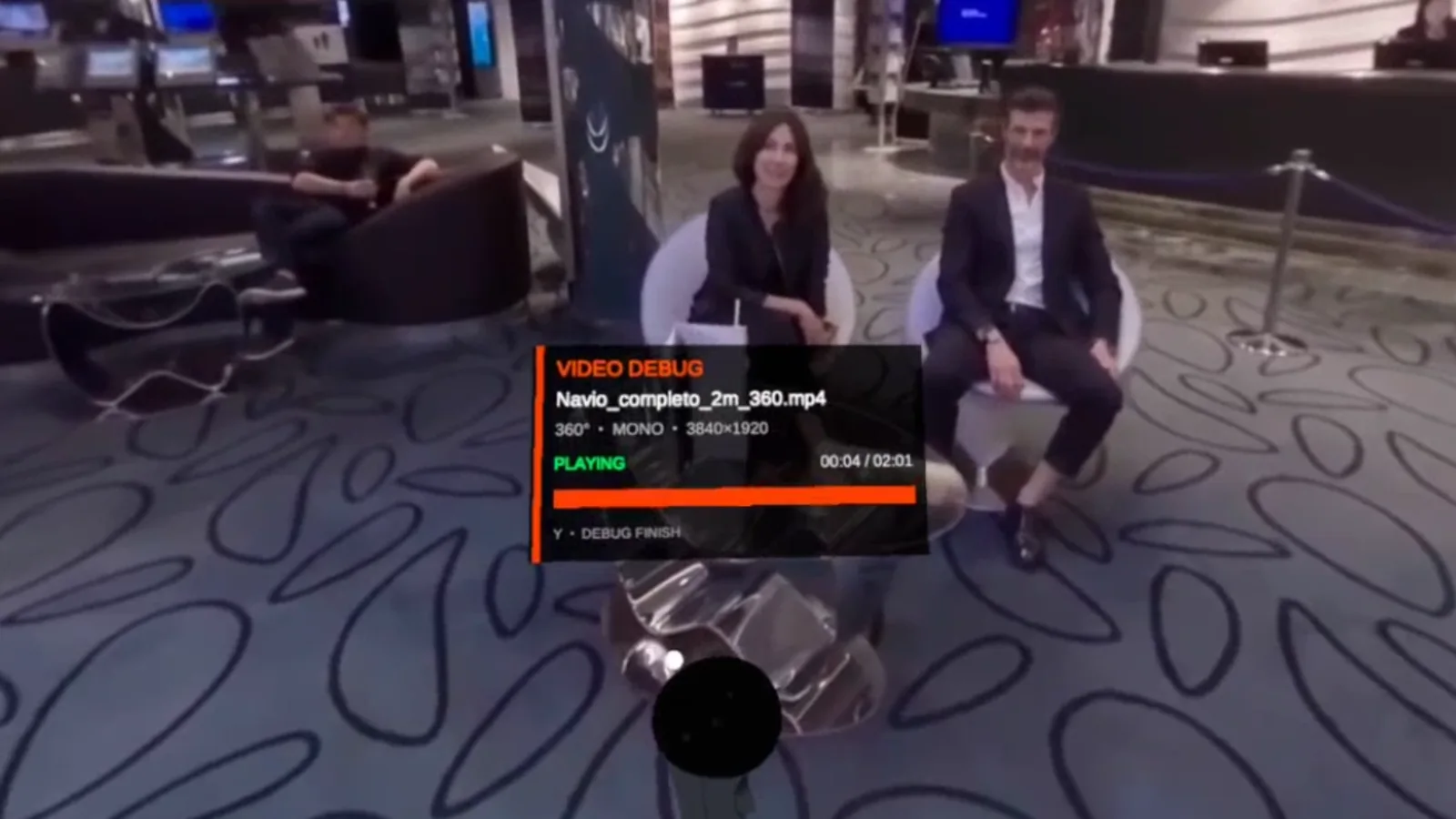
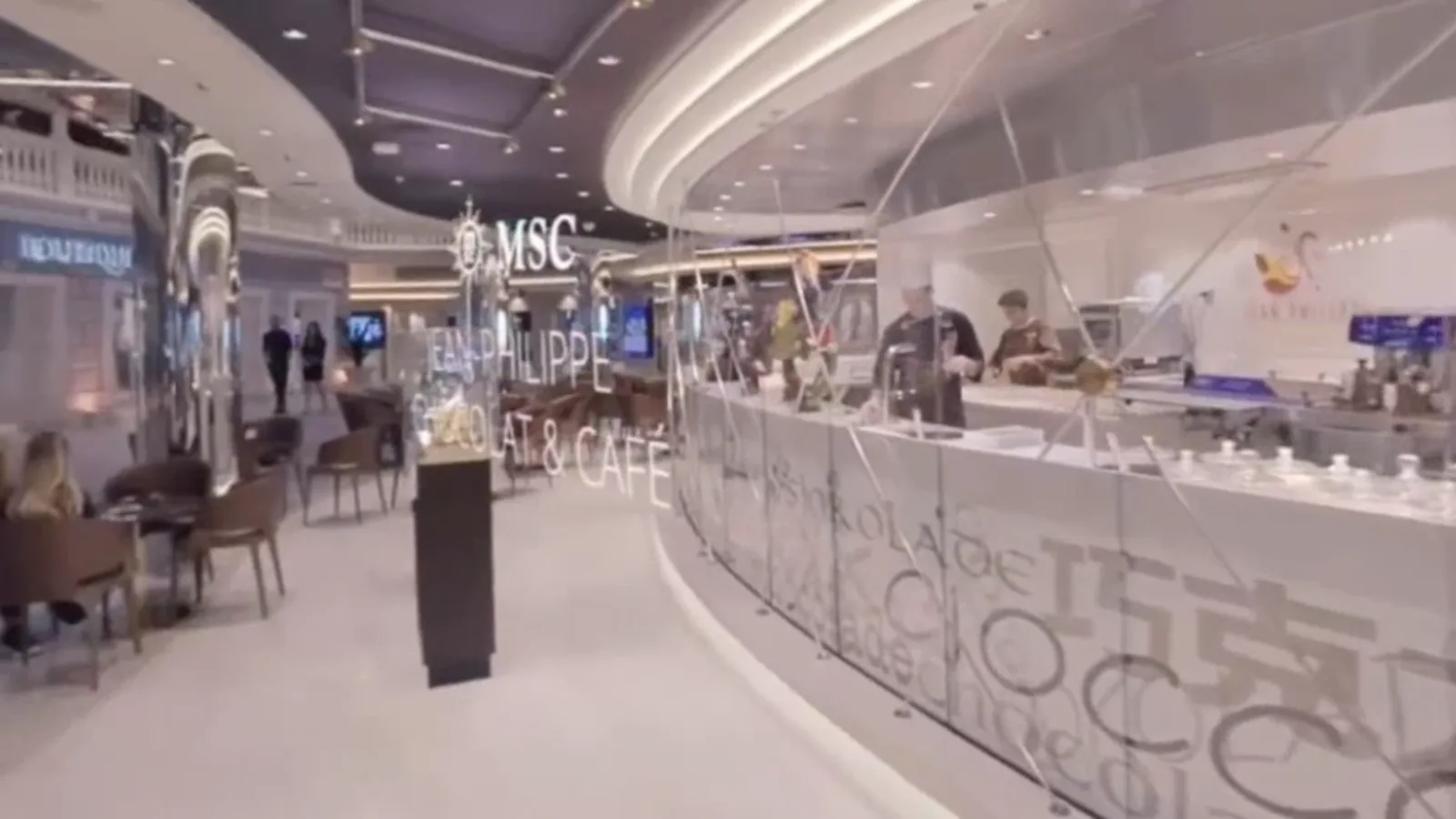
No actors, no mockups: it is the real app running
These images come from a screen recording made aboard a cruise ship during a real activation. The same flow arrives ready for your event.
The diagnostics panel in the corner is exactly what the operator sees in real time, unedited.Same activation, another area of the event.
The video content belongs to the event shown: each activation uses the client own material.
Setup
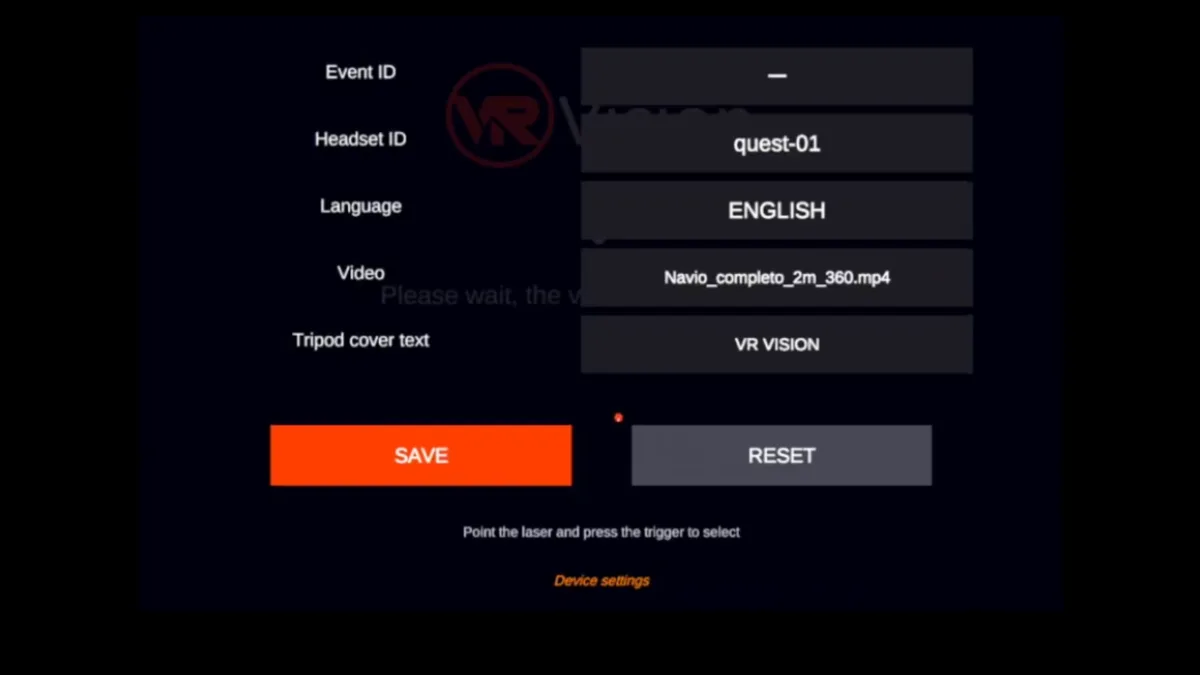
Four fields. After that, it asks nothing else.
Event ID
Tells activations apart, useful when your team runs more than one event in the same week.
Headset ID
Identifies each device so support can help remotely without guessing.
Language
Portuguese or English, with no reconfiguration.
Tripod cover text
Your activation name on the tripod cover, on the event floor.
Set up once, right from the controller. Next time it turns on, the headset remembers everything.
Preparing content
The file name tells it how to play
No settings menu for each new video: the projection is detected from the file name.
Copy
Copy the video into the app videos folder on the headset storage:
Pick the video in the left controller menu. That is it.
_360360º video
_180180º video
_SBS · _LR · _3DHSide-by-side stereo
_TB · _3DV · _OverUnderTop-and-bottom stereo
no markerMonoscopic
Real file name example
evento-praia_SBS_360.mp4
_SBS side-by-side stereo and _360 360º projection, combined in the same name. The marker must be in the file name: there is no screen that replaces it later.
Specs
Straight from the official store listing
Compatible with
Meta Quest 3S, Meta Quest 3, Meta Quest Pro and Meta Quest 2
Category
Apps · Media
Modes
Sitting or standing
Controls
Controllers and hand tracking
Comfort
Comfortable
Languages
Portuguese (Brazil) and English
Space
155.67 MB
Connection
The listing requires internet; the video is stored on the headset
Video content not included. Compatibility depends on the codec and resolution supported by Meta Quest.
Available now on the Meta Horizon Store
Take the Kiosk Player to your next event
Get it on the Meta Horizon Store and use it on your own headsets, or ask for headsets already set up with a VR Vision rental.


 VR Vision Kiosk Player